Updates
How the app checks, verifies, and applies updates.
Section 1
Overview
LeadFOMO checks for updates at launch. Update metadata is digitally signed by the release server, and the app verifies both that signature and the package SHA-256 before installation. Metadata with an invalid signature and packages whose hash does not match are refused.
Quick tutorial
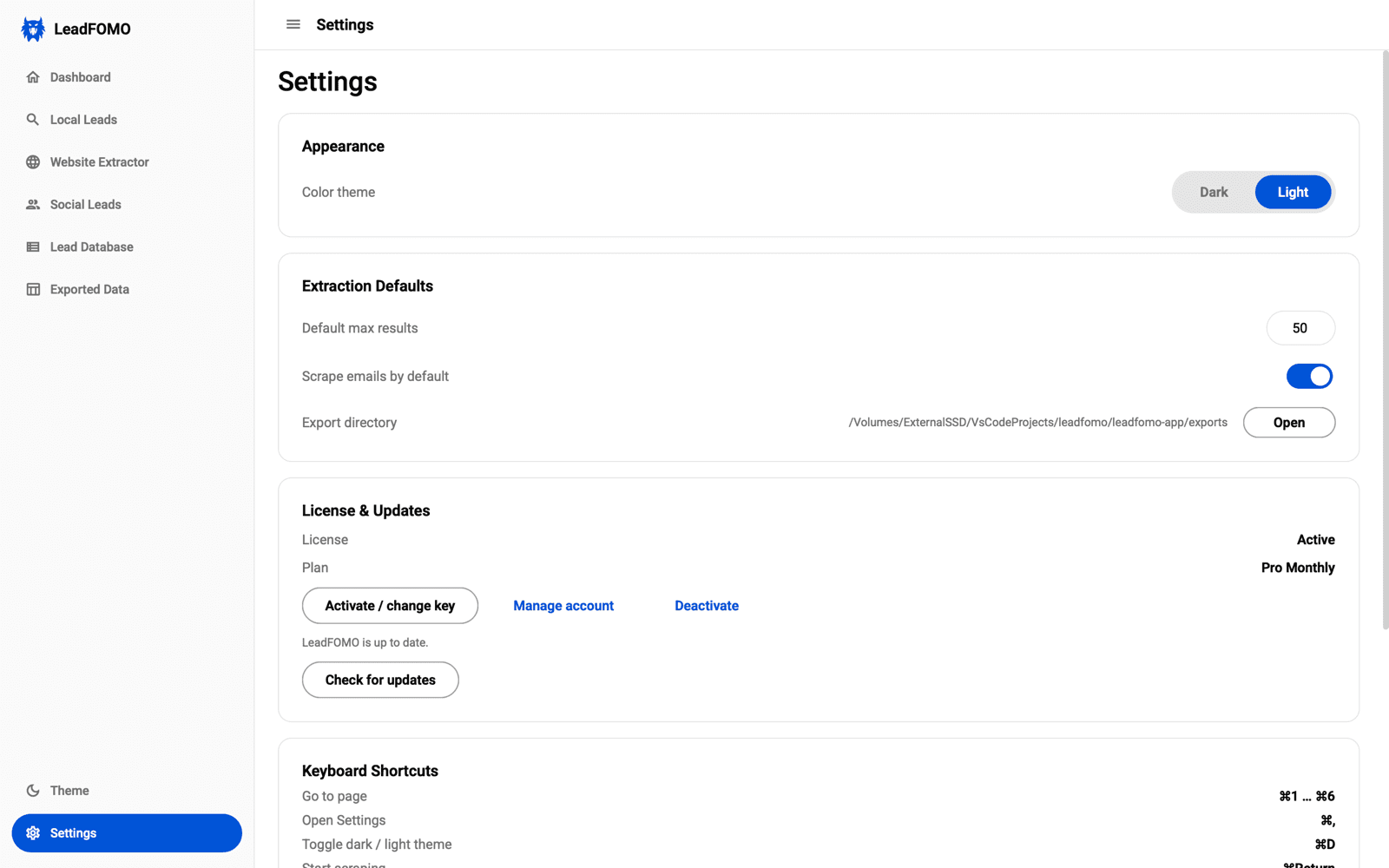
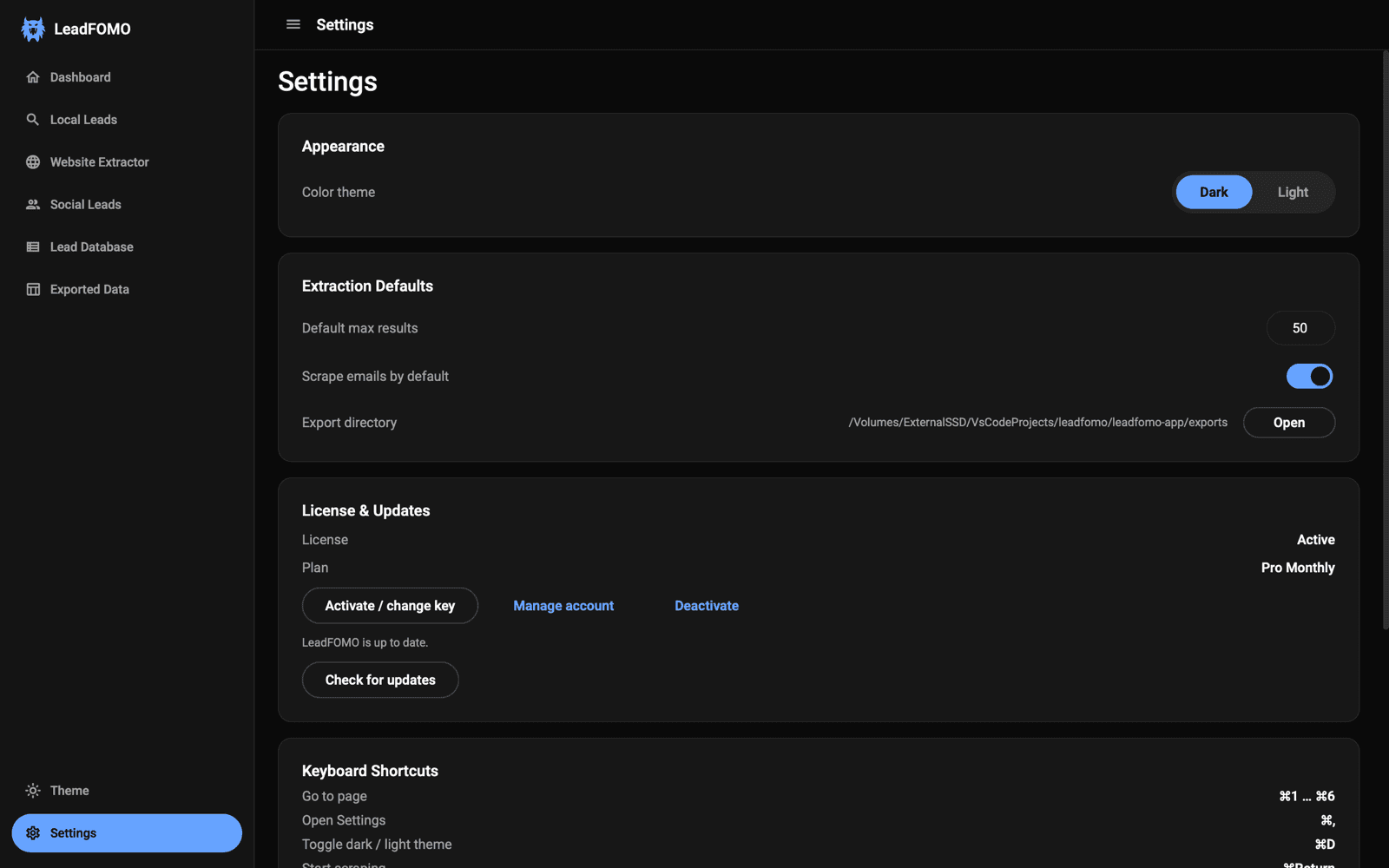
- 1Open Settings → Check for updates.
- 2Review the offered version and release notes.
- 3Choose Update now and keep LeadFOMO open while it downloads.
Section 2
Mandatory updates
Some releases are marked mandatory (security or compatibility fixes). The app will require the update before premium modules run.
Quick tutorial
- 1Save or export current work.
- 2Allow a mandatory update to finish.
- 3Reopen LeadFOMO and confirm the new version in Settings.
Section 3
Staged rollouts
Releases may roll out gradually. If a version is outside your rollout ring, it can be offered on a later launch or manual update check after the rollout percentage changes.
Quick tutorial
- 1If no update appears, continue using the current supported version.
- 2Check again from Settings later.
- 3Never install an update received through an unofficial link.